Authentication & Authorization
Understand the three-layer security model for API access
Three-Layer Security Model
All three layers must be valid for API access
Layer 1: API Key (Public)
The public identifier for your API credentials
Layer 1 Example
Header: x-api-key
Value: nyra_2f9a1e2b3c4d5f6g7h8i
Visibility: Semi-public (safe to include in client code)
Layer 2: API Secret (Confidential)
Secret key paired with the API key - must be kept secure
Layer 2 Example
Header: x-api-secret
Value: aVeryLongBase64SecretString...
Visibility: PRIVATE (server-side only, never expose)
Layer 3: Hospital Token (Scoped)
Hex hospital token returned when the API key is issued (stored server-side with a TTL, typically about 24 hours). Use this value for REST only.
Layer 3 Example
Header: Authorization: Bearer <hospital_token>
Value: a1b2c3d4e5f6... (hex string from key issuance, not a JWT)
Visibility: PRIVATE (server-side only, never expose)
External REST API requires all three credentials: x-api-key, x-api-secret, and Authorization: Bearer <hospital_token>. The Bearer hospital token is returned during API key creation and is hospital-scoped. The JWT from POST /api/external/ws-ticket is only for the WebSocket connection and is not valid for REST endpoints.
Request Headers
Every request must include all three layers
Complete Request Example
curl -X GET "https://server.nyraai.io/api/external/patients" \
  -H "x-api-key: nyra_2f9a1e2b3c4d5f6g7h8i" \
  -H "x-api-secret: aVeryLongBase64SecretString..." \
  -H "Authorization: Bearer <hospital_token_from_key_issuance>" \
  -H "Content-Type: application/json"
Error Responses
Understanding authentication errors
401 Unauthorized
Returned when authentication fails (wrong key, secret, or token)
{
  "success": false,
  "error": "Unauthorized",
  "message": "Invalid API credentials"
}
✓ Verify x-api-key, x-api-secret, and Authorization header
✓ Check token hasn't expired
✓ Ensure all three headers are present
403 Forbidden
Returned when API key lacks required permission
{
  "success": false,
  "error": "Forbidden",
  "message": "Missing required permission: patients:read"
}
✓ Request new API key with required permissions
✓ Contact hospital admin for permission upgrade
Generate API Key via Dashboard
Admin dashboard for managing API keys
API keys are generated through the NyraAI admin dashboard. This provides a secure, user-friendly interface for creating and managing your integration credentials.
📍 Dashboard Location:
What You'll Get
{
  "success": true,
  "data": {
    "key": "nyra_2f9a1e2b3c4d5f6g7h8i",
    "secret": "aVeryLongBase64SecretString...",
    "token": "a1b2c3d4e5f6789abcdef...",
    "id": "api-key-uuid",
    "permissions": ["patients:read", "patients:create", "appointments:write"]
  },
  "message": "API key generated successfully"
}
Step-by-Step Guide
- Visit the dashboard URL above
- Log in with your hospital admin credentials
- Navigate to "API Keys" section
- Click "Create API Key" button
- Select required permissions for your integration
- Copy and securely store the generated credentials
📸 Dashboard Reference:
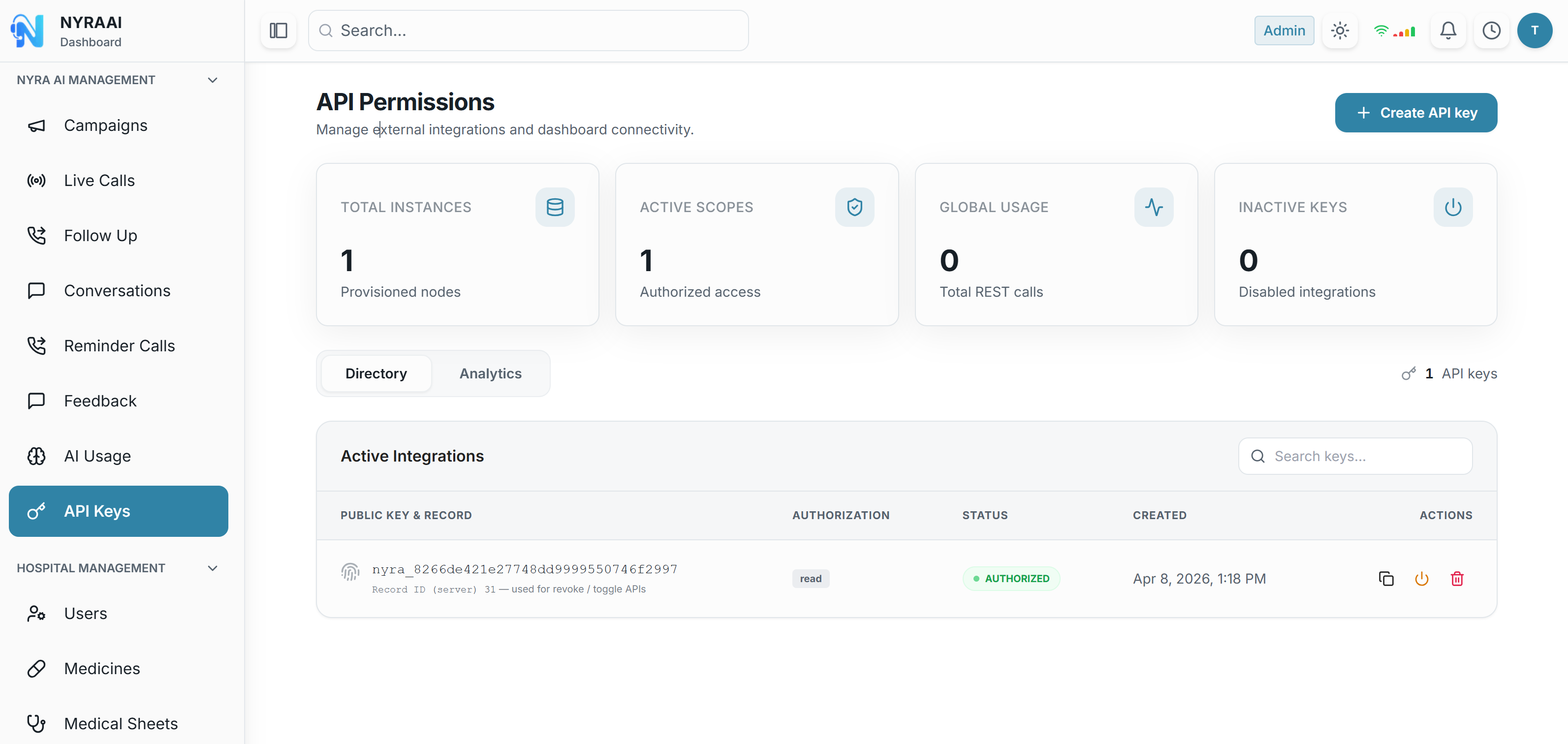
What you'll see: The API Permissions dashboard displays your API keys, active integrations, usage statistics (Total Instances, Active Scopes, Global Usage, Inactive Keys), and a prominent "Create API Key" button in the top right corner.
Rate Limiting
API usage quotas
⚡ Per API key: up to 12 requests per second and 60 requests per minute
Each API key is rate-limited to prevent abuse and ensure fair usage across all hospitals.
- • Minute window resets every 60 seconds
- • Applies per API key, not per hospital
- • Rate limit headers returned with each response
- • Exceeding either limit returns 429 status code
Rate Limit Response Headers
Headers in Every Response
X-RateLimit-Limit: 60
X-RateLimit-Remaining: 45
X-RateLimit-Reset: 1704067200
If you need more capacity, create additional API keys from the dashboard. Multiple active keys per hospital are supported; use separate keys per integration or permission scope.
Security Best Practices
Store Secrets Securely
Use environment variables or secure vaults. Never commit secrets to version control.
Use HTTPS Only
Always use HTTPS in production to encrypt credentials in transit.
Rotate Keys Regularly
Generate new API keys periodically and revoke old ones to limit exposure.
Minimal Permissions
Request only the permissions you need. This limits damage if credentials are compromised.